Published
Turning on two-factor authentication for Facebook: authenticator app, security key or passkey?
A password alone isn't enough. How to turn on two-factor authentication, pick the right method, keep recovery codes and enable login alerts on Facebook.
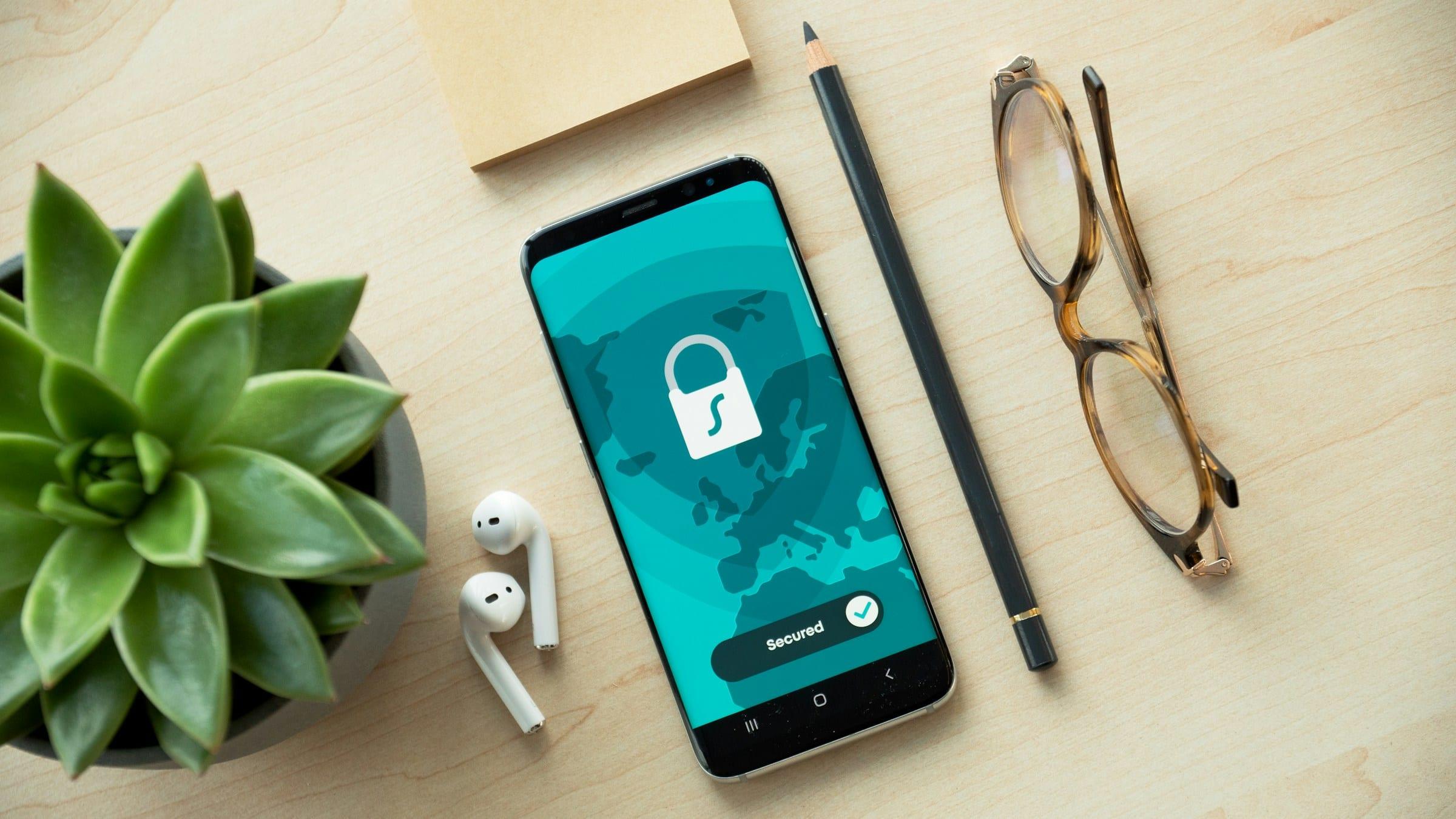
Most of the lost Facebook accounts we see have one thing in common: they were protected by a password only. Once that password leaks through a phishing page or is reused elsewhere, anyone can log in. Two-factor authentication (2FA) adds a second layer: besides the password, the person logging in needs something only you have.
Methods Facebook supports
According to Facebook's help page, you can choose:
- An authentication app (Google Authenticator, Microsoft Authenticator, etc.): rotating 6-digit codes that work without mobile signal.
- A security key: a physical USB/NFC key you tap when logging in on a compatible device.
- SMS text messages: codes sent to your phone.
Since June 2025 Meta has also offered passkeys on Facebook for iOS and Android. According to Meta's announcement, passkeys let you sign in with your fingerprint, face or device PIN; they are stored on your device and not shared with Meta. Passkeys now work across Facebook, Messenger and Instagram.
Which should you choose?
| Method | Strengths | Watch out |
|---|---|---|
| Authenticator app | Safer than SMS, no signal needed | Migrate carefully when changing phones |
| Security key | Strongest against phishing | Costs money; keep a backup key |
| Passkey | Convenient, phishing-resistant | Tied to your device; protect your screen lock |
| SMS | Easy | Easy to be tricked into sharing codes; depends on SIM |
Practical advice: use an authenticator app or security key as your main method, with SMS only as a backup.
How to turn on 2FA
On Facebook, following the help page:
- Click your profile picture → Settings & privacy → Settings.
- Open Accounts Center → Password and security.
- Select Two-factor authentication and choose the account.
- Pick a security method and follow the on-screen steps.
Note: Meta is gradually replacing Accounts Center with Meta Account (announced April 2026). If your menu shows the new name, password and security settings are still inside.
Don't forget your recovery codes
When you turn on 2FA, Facebook lets you get 10 login recovery codes for when your phone isn't available. So:
- Print or write them down and store them safely.
- Don't keep a screenshot in your photo gallery or in widely synced notes.
- Never share them, even with someone claiming to be "Meta support".
Turn on login alerts and review devices
In Accounts Center → Password and security:
- Turn on Login alerts to be notified about logins from unfamiliar devices or browsers.
- Check Where you're logged in and log out of devices you don't recognise (guide).
- Run Security Checkup regularly to review everything.
Golden rule: a 2FA code is for you to log in. Anyone asking for it, however reasonable they sound, is suspect.
Common mistakes
- Changing phones without moving the authenticator app, locking yourself out. Migrate before wiping the old phone.
- Relying on SMS to a number you're about to drop. Update it first.
- Using 2FA with a weak, reused password. 2FA doesn't replace a good password.
- Typing a 2FA code into a phishing page. Always check you're on facebook.com.
How AT Media can help
If you'd like hands-on help, AT Media offers 1-1 training where you set up 2FA, passkeys, recovery codes and login alerts yourself, on your own device. We guide the account owner through it; you never need to hand over passwords or security codes.